Showing posts with label Java Articles. Show all posts

Thursday, February 3, 2022

Your Java Version is Out of Date Pop-Up Disable


Your Java Version is Out of Date Pop-Up Disable

YOUR JAVA VERSION IS OUT OF DATE ERROR:

Your Java Version is Out of Date Pop-Up Disable

SOLUTION:

If you have received the following message on your system, we recommend that you update your Java software version.

But, if for some reason, you cannot update your Java version, you can disable this popup message by entering the following lines in your deployment.properties file that is stored in: 

Deployment.properties file path :

WINDOWS 7:

C:\Windows\Sun\Java\Deployment


WINDOWS 10:

C:\Users\sahal.qasim\AppData\LocalLow\Sun\Java\Deployment


deployment.expiration.check.enabled=false
deployment.expiration.check.enabled.locked

After this we have to add the followin environment variable.

Open Command Prompt and type the following

setx deployment.expiration.check.enabled false /m

If you do not have Deployment.config and Deployment.properties files in C:\Windows\Sun\Java\Deployment folder here’s what you’ll have to do:


Create Deployment.config file and add the following lines in it:


deployment.system.config=file\:C\:/Windows/Sun/Java/Deployment/deployment.properties
deployment.system.config.mandatory=true


Now create the Deployment.properties and add the following lines in it:


deployment.javaws.autodownload=never
deployment.javaws.autodownload.locked
deployment.expiration.check.enabled=false
deployment.expiration.check.enabled.locked
deployment.expiration.decision=never
deployment.expiration.decision.locked
deployment.expiration.decision.suppression=true
deployment.expiration.decision.suppression.locked


Set environment variable by typing the following line in command prompt:

setx deployment.expiration.check.enabled false /m

Tuesday, January 4, 2022

Application blocked by Java Security expired certificate


Application blocked by Java Security expired certificate


If you want to face this error, "Failed to validate certificate." Then follow these steps that are mentioned below. 

Application blocked by Java Security expired certificate

  • Go to your Windows OS search bar and type "Configure Java". Then click on it.
Application blocked by Java Security expired certificate
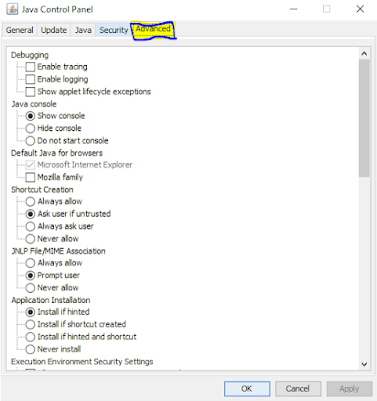
  • The Java Control Panel will open. After that, go to the "Advanced tab".
Application blocked by Java Security expired certificate
  • Following that,Click the "Advanced tab". Scroll down and search for mixed code (sandbox vs. trusted) security verification and And click on "Disable verification (not recommended)".
Application blocked by Java Security expired certificate
  • Now search for "Perform signed code certificate revocation checks on" and check it "Do not check (not recommended)".
Application blocked by Java Security expired certificate

  • After completing both of these steps, The last and final step is to search for "Perform TLS certificate revocation checks on" and Do not check "Do not check (not recommended)". After following all the steps line by line, click on "Apply" and "OK" buttons.
Application blocked by Java Security expired certificate


I hope it's helpful for you. If you have any queries regarding Java or Oracle, don't hesitate to contact me.

Name : Muhammad Sahal Qasim
E-mail : s.m.sahal789@gmail.com
Thank you.